


King
Administrator
- Joined
- Jul 12, 2021
- Messages
- 25,005
- Reaction score
- 5
- Points
- 38
WinToHDD 5.9 Enterprise / Professional / Technician Multilingual | File size: 10 MB
WinToHDD is a handy and useful Windows software that allows you to install or reinstall Windows without using a CD/DVD or USB drive. With this All-in-One Windows Setup software, you can easily reinstall Windows, install Windows onto disks other than the one where your Windows operating system is installed, or clone current Windows OS installation (Windows vista or later) to other disk.
Deploying Windows shouldn't be rocket science for users who possess basic computer knowledge, especially with the right tools at hand. Aside from creating a bootable USB drive containing all the setup files of the OS, you can try out an application such as WinToHDD. Its purpose is to help you re-install Windows without using a disc and without going through the hassle of creating a bootable USB drive.
Install, re-install or clone Windows
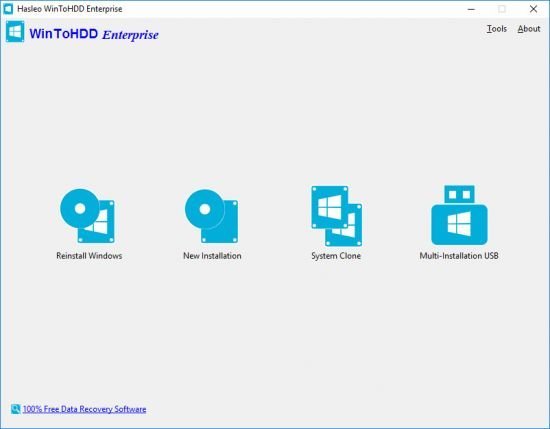
Attempting to make the Windows deployment procedure as simple as possible, WinToHDD comes with a straightforward, clean interface that only comprises three buttons: one for re-installing the OS on the local workstation, one for starting a fresh Windows install on a second storage device (hard drive), and the third for creating an exact copy of the local system.
In other words, not only that you can deploy Windows with WinToHDD, but it is also possible to create a copy of the Windows setup files and save it to another disk.
Go through simple steps to create a WinPE image
No matter what your choice is, getting the job done is only a matter of pressing a few Next buttons from this point on. As expected, you are prompted to select the source ISO file that contains the Windows setup files. WinToHDD automatically reads data from the disk image and retrieves information regarding the operating system and its architecture.
Next, you must select the system partition that Windows...
Please Login or Register to view content
Continue reading...